A key event in Google Analytics 4 (GA4) is an event you mark as especially important to your business: a purchase, a lead form, a booking or a sign-up. Setting one up takes three things: the action has to be sent to GA4 as an event, that event has to be marked as a key event, and you have to test that it records correctly. Done properly, key events tell you which channels, campaigns and pages actually drive results, and give Google Ads a reliable signal to optimise towards.
This guide walks through the whole process, step by step, using Google Tag Manager (GTM), plus a no-code option inside GA4 itself.
What is a GA4 key event?
GA4 measures everything as events: page views, scrolls, clicks, form submissions and purchases. Most events are just activity. A key event is one you’ve flagged as a meaningful outcome, so GA4 reports on it separately and you can see which traffic sources produce it. To keep those sources accurate, tag the links in your ads and emails with UTM parameters; our free UTM builder does it in seconds.
Key events used to be called conversions in GA4. In 2024 Google renamed them to key events, and kept the word “conversions” for the actions counted in Google Ads. The two are linked, you can import GA4 key events into Google Ads as conversions, but they’re no longer the same thing.
Which events should be key events?
Only mark the outcomes you’d genuinely act on. If everything is a key event, nothing stands out, and if you import them into Google Ads, a soft action such as a page scroll can pull bidding in the wrong direction.
| Business type | Good key events | Usually not key events |
|---|---|---|
| eCommerce | purchase | add_to_cart, view_item |
| Lead generation | generate_lead (form submitted), phone call click | page views, scrolls |
| SaaS | sign_up, trial start, demo booked | pricing page view |
| Travel and leisure | booking or reservation | search, date selection |
Softer actions such as add-to-cart are still worth tracking as normal events, they’re useful for analysis and remarketing, just don’t mark them as key events unless they’re your main goal.
Before you start
Check you have:
- Editor access to the GA4 property and, if you’re using it, the Google Tag Manager container
- The Google tag (or GA4 configuration) installed on every page, so page views are already arriving in GA4
- A clear trigger for the action: ideally a thank-you or confirmation page, or a developer who can push an event to the data layer when the action completes
- Your consent banner set up so tags respect visitors’ choices, with Google’s Consent Mode if you use it
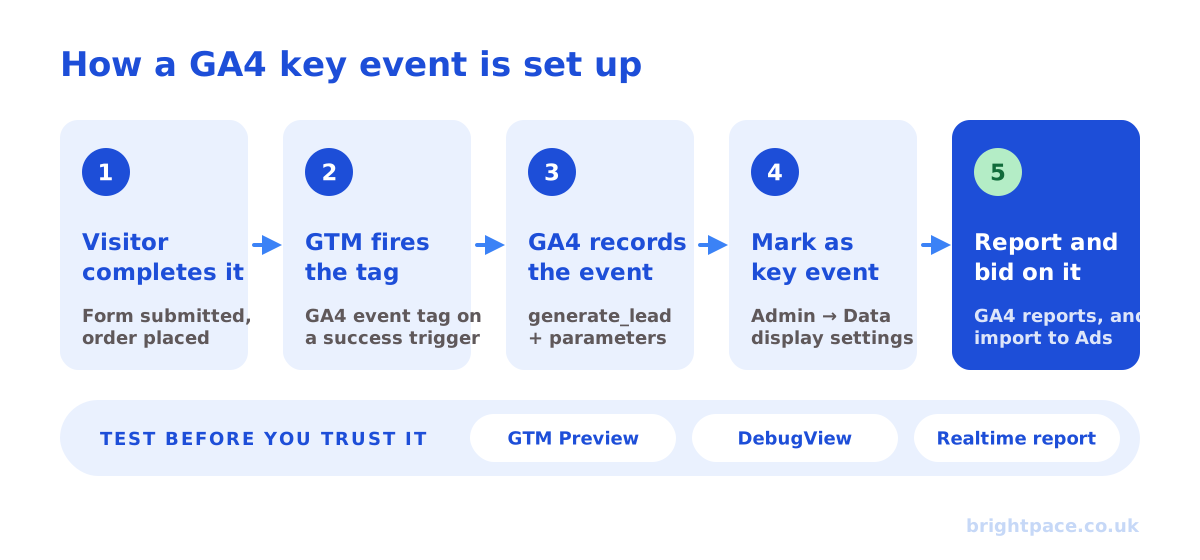
Step 1: Decide what counts and name it
Write down exactly when the event should fire: for example, “when a contact form is successfully submitted”, not “when someone clicks the submit button”. A click can fire even when the form fails validation; a confirmation page or a success message only appears when it worked.
Use Google’s recommended event names where one fits, such as generate_lead, purchase or sign_up. They unlock extra reporting, and they keep your setup consistent if you add more tools later. Use lowercase with underscores, and keep the same name everywhere the action can happen.
Step 2: Send the event to GA4
There are two common ways to do this. Google Tag Manager gives you the most control; creating the event inside GA4 needs no code but is more limited.
Option A: Google Tag Manager (recommended)
- Choose the trigger. The most reliable is a data layer event your website pushes when the action completes: for example
dataLayer.push({ event: 'generate_lead' })on form success. If you don’t have that, use a Page View trigger that fires when the Page Path matches your thank-you page. - Create the trigger in GTM. Go to Triggers → New. For a data layer event, choose Custom Event and enter the event name exactly as it’s pushed (
generate_lead). For a thank-you page, choose Page View and set it to fire on “Some page views” where Page Path equals/thank-you. - Create the GA4 event tag. Go to Tags → New → Google Analytics: GA4 Event. Enter your GA4 Measurement ID (it starts with G-), and set the Event Name to
generate_lead. - Add useful parameters. Optional, but valuable: add
form_nameorlead_typeto tell lead types apart, andvaluepluscurrencyif you can estimate what a lead is worth, useful for value-based bidding later. - Attach the trigger and save. Select the trigger you created in step 2, name the tag clearly (for example “GA4, Event, generate_lead”) and save.
- Test in Preview mode before publishing. Click Preview, complete the action on your site, and confirm the tag shows under “Tags Fired” on the right event. Then submit and publish the container.
Option B: Create the event in GA4 (no code)
If your action always ends on a unique confirmation page, GA4 can create the event for you from page views:
- In GA4, go to Admin → Events → Create event, then click Create.
- Name the custom event (for example
generate_lead). - Add matching conditions:
event_nameequalspage_viewandpage_locationcontains/thank-you. - Save. GA4 will now create a
generate_leadevent every time that page is viewed.
This is quick, but it relies on the URL, so it can’t tell a real submission from someone revisiting or refreshing the thank-you page, and it won’t work for forms that show a success message without changing page.
Step 3: Mark it as a key event
Once the event is being sent, tell GA4 it matters. There are two ways:
- From the events list: go to Admin → Data display → Events, find your event, and click the star or Mark as key event. The event only appears here after GA4 has received it at least once, which can take up to a day.
- Ahead of time: go to Admin → Data display → Key events → New key event, and type the event name exactly as it will be sent (
generate_lead). This works before the first event arrives.
Marking a key event isn’t retroactive: GA4 starts counting it as a key event from the moment you mark it, not for past data.
Step 4: Choose the counting method
Each key event can be counted once per event (every time it happens) or once per session (at most once per visit). To change it, go to Admin → Data display → Key events, open the menu next to the event, and choose the counting method.
- Once per event suits purchases: two orders in one visit are two sales.
- Once per session suits leads: someone submitting the same form twice in one visit is still one lead.
Step 5: Test it
Test before you trust it. Use all three checks:
- GTM Preview / Tag Assistant: confirms the tag fires once, on the right action, with the right parameters.
- GA4 DebugView (Admin → Data display → DebugView): shows events from your test session arriving in GA4 in near real time, with their parameters. It picks up sessions in GTM Preview mode automatically.
- Realtime report (Reports → Realtime): shows the event, and once it’s marked, the key event, from live traffic within minutes.
For a wider check of the whole site, our free tracking checker shows whether GA4 counts page views twice, waits for cookie consent and receives Consent Mode v2 signals.
Standard reports can take 24–48 hours to show new data, so don’t panic if a key event looks empty on day one. And make sure your own test submissions don’t skew the numbers: define your office IP as internal traffic (Admin → Data streams → your stream → Configure tag settings → Define internal traffic), then activate the internal traffic filter in Admin → Data filters.
Step 6: Use it in Google Ads
To let Google Ads optimise towards the same outcome, link your GA4 property and Google Ads account (Admin → Product links → Google Ads links), then import the key event:
- In Google Ads, go to Goals → Conversions → Summary → New conversion action.
- Choose Import → Google Analytics 4 properties → Web.
- Select your key event and import it.
- Decide whether it should be a primary conversion (used for bidding) or secondary (reported only). Avoid importing the same action twice, for example, a GA4 lead plus a Google Ads tag on the same form, or both will count and bidding will think each lead happened twice.
Imported GA4 conversions can arrive in Google Ads more slowly than the Google Ads tag, and enhanced conversions are set up in Google Ads itself, so for accounts that rely heavily on bidding, many advertisers use the Google Ads conversion tag with enhanced conversions for bidding, and GA4 key events for cross-channel reporting. For more on getting tracking right, see our Google Ads quick wins, where fixing conversion tracking is quick win number two. Once your events are flowing, you can also turn them into audiences for your campaigns: see how to sync GA4 audiences to Google Ads.
Common mistakes
- Firing on the button click instead of success, so failed or duplicate submissions count as leads
- Marking too many events as key events, which buries the outcomes that matter
- Counting leads once per event, so refreshes and double submissions inflate the numbers
- Typos and inconsistent names:
generate_lead,Generate Leadandlead_submitare three different events in GA4 - Double-counting in Google Ads by importing a GA4 key event and also tagging the same action natively, both as primary
- Never testing after site changes: a new form plugin or redesigned thank-you page can silently break tracking
- Not filtering internal traffic, so your own tests appear as leads
FAQs
What’s the difference between a GA4 key event and a conversion?
A key event is GA4’s name for an event you mark as important. Conversions are what Google Ads counts and bids towards. A GA4 key event becomes a Google Ads conversion when you import it.
How long do key events take to show in GA4?
They appear in DebugView and the Realtime report within minutes, but standard reports can take 24–48 hours to process new data.
Can I mark past events as key events?
No. Key event counting starts from the moment you mark the event. Earlier occurrences stay as ordinary events.
Should a lead be counted once per event or once per session?
Usually once per session, so a repeat or duplicate submission in the same visit doesn’t count as two leads. Purchases are usually counted once per event.
Do I need Google Tag Manager to create key events?
No. You can create an event from page views inside GA4, or have a developer send events with the Google tag. GTM is recommended because it gives you more control and makes testing easier.
In short
To set up a GA4 key event: decide exactly what counts, send it to GA4 as an event, ideally with Google Tag Manager on a data layer success event, mark it as a key event, choose the right counting method, and test it in Preview, DebugView and Realtime. Then import it into Google Ads only where it should guide bidding, and check it again whenever the site changes. Clean key events are the foundation of every decision you make about paid media, including measuring what your ads really add, which we cover in incremental attribution on Meta. New to the terminology? Our performance marketing glossary explains the terms in plain English.
Sources
The platform documentation and coverage this guide is checked against. Last checked October 2026.
- Mark events as key events, Google Analytics Help
- Create or modify key events, Google Analytics Help
- About conversion measurement, Google Ads Help
Want your tracking set up properly, or checked before you scale spend? See our measurement service. Tracking is also the first thing we review in a paid audit, and it’s built into how we run paid search and paid social. Let’s chat.
Want a senior eye on your paid media strategy?
Work directly with the founder: no juniors, no hand-offs, 30-day rolling contracts.