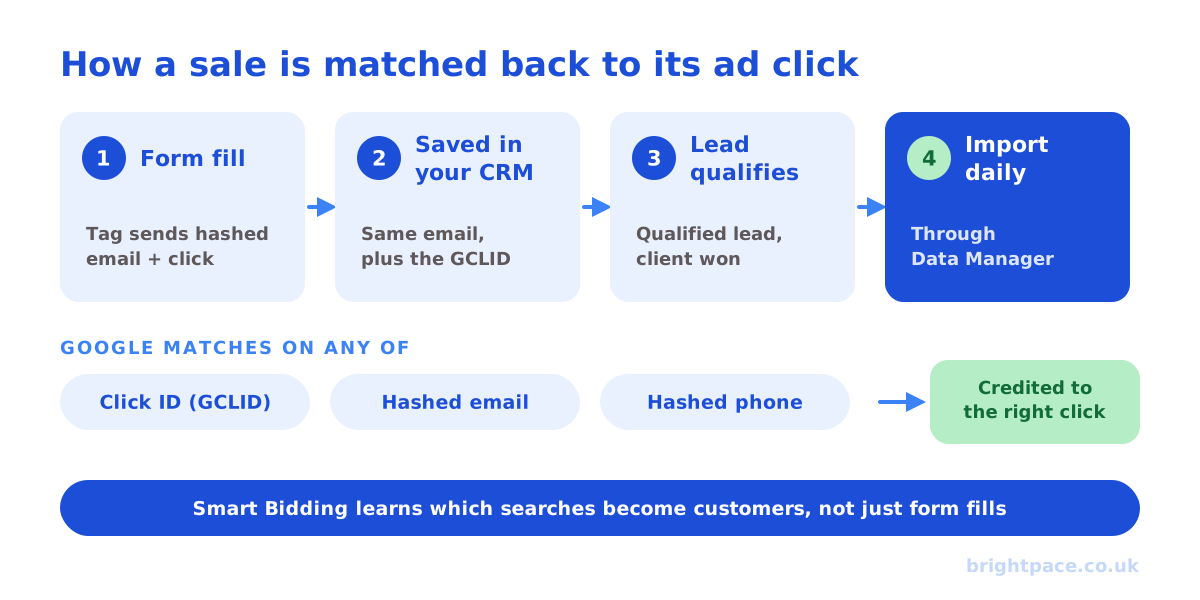
Enhanced conversions for leads lets Google Ads match a lead that turns into a sale weeks later back to the ad click that started it, using a hashed (scrambled) email address or phone number rather than relying only on the click ID. Your form sends the hashed details to Google when someone enquires, your CRM keeps the same details, and when the lead qualifies or buys you import it to Google with those details. Google matches the two, credits the right campaign and teaches Smart Bidding which clicks become customers.
In 2026, Google changed how it works. Enhanced conversions for web and for leads are now one setting with a single on/off switch, Google accepts customer data from your website tag, Data Manager and the API at the same time, and uploads that used to go through the Google Ads API now go through the Data Manager API. This guide explains what changed, what you need to do, and how to set it up properly.
What changed in 2026
| Before | Now |
|---|---|
| Two separate settings: enhanced conversions for web, and for leads | One setting, switched on for the account or per conversion action |
| You chose one way to send the data: Google tag, Tag Manager or the API | No method to choose. Google accepts data from website tags, Data Manager and API connections together |
| Leads uploads could go through the Google Ads API | Uploads move to the Data Manager API, and are blocked in the Google Ads API from 15 June 2026 |
| Turned on under the enhanced conversions settings | New users turn it on under Goals → Settings → Customer data use, or on a conversion action |
If you already used enhanced conversions, you don’t need to do anything to keep them working. Google moved accounts that had accepted its customer data terms to the new setting automatically. The change that does need action is for anyone sending uploads through the Google Ads API, such as a developer’s custom integration: it has to move to the Data Manager API. If you upload through a CRM connection, Google Sheets or a tool such as Zapier, check the uploads are still arriving, but there’s usually nothing to rebuild.
Google’s help pages give slightly different months for the switch to a single setting (April and June 2026), so if your account still shows the old separate settings, it may simply not have been updated yet.
How enhanced conversions for leads works
- Someone clicks your ad and fills in your form. The Google tag reads the email address (and phone number, if you ask for it) from the form, hashes it and sends it to Google with the click.
- The lead goes into your CRM with the same email address, and ideally the click ID (GCLID) too.
- Your team works the lead. It becomes a qualified lead, an opportunity or a customer.
- You import the outcome to Google Ads: the conversion name, the time, a value and the lead’s email or phone. Google hashes it if you haven’t.
- Google matches it to the form fill from step 1, and to the Google account that clicked your ad, then credits the campaign, keyword and ad.
The click ID still matters. Google says to include GCLIDs whenever you have them, and they’re required if you don’t use the tag to collect customer details. Enhanced conversions for leads adds a second way to match, so conversions are still counted when the click ID gets lost: when someone switches device, when a browser strips the tracking from the link, or when a form or CRM drops it. It’s the upgraded version of the click-ID-only offline conversion tracking many accounts still use.
Why it’s worth setting up
- Google bids for customers, not form fills. Without it, Google treats every enquiry as equally good and finds you more of the cheapest ones. With it, Google learns which searches turn into sales.
- More of your sales are counted. Leads whose click ID went missing can still be matched, so reported results get closer to what your CRM shows.
- It holds up better as privacy rules tighten. Matching on hashed details you already have, with consent, depends less on cookies and link parameters.
- It works for Performance Max and Demand Gen too. Google says it supports engaged-view and cross-device conversions, which matters for video and YouTube. See Performance Max for lead generation.
How to set it up
Google moves its menus from time to time. The paths below are correct at the time of writing; if a label has changed, the option will be close by.
1. Turn it on and accept the customer data terms
In Google Ads, go to Goals → Settings → Customer data use, switch enhanced conversions on and accept the customer data terms. If a manager account handles conversion tracking for this account, accept the terms there instead. You can also switch it on, or off, for a single conversion action.
2. Make the Google tag collect the form details
Pick one of three ways:
- Automatic. In your Google tag settings, open Manage automatic event detection and switch on Form interactions. The tag finds the email field and sends it hashed when the form is submitted. Quickest, but check it picks the right field.
- CSS selectors. Point Google at the exact email and phone fields on your form. More reliable when your form has several email-like fields.
- Code or Google Tag Manager. Pass the details yourself when the form submits successfully. This is the most reliable option, and the one we use, because you control exactly what is sent and when:
// After a successful form submission, before the conversion event
gtag('set', 'user_data', {
  email: 'jane.smith@example.co.uk',   // the value the person typed
  phone_number: '+447700900123'        // E.164: + country code, no spaces
});
gtag('event', 'form_submit', { send_to: 'AW-XXXXXXXXX' });
Ask for an email address on every lead form, and a phone number where it makes sense. Google recommends both, because more details means more matches.
3. Create a conversion action for each stage you’ll import
Go to Goals → Summary → + Create conversion action, choose Conversions offline, then CRMs, files or other data sources and Track conversions from clicks. Create one for each stage you care about, for example Qualified lead and Client won, give each a value and set it to count one conversion per lead.
4. Connect your data in Data Manager
Data Manager (in Tools) is where you connect the source of your lead outcomes. Google recommends it for anyone upgrading from click-ID-only imports.
| Source | Good for | How it imports |
|---|---|---|
| HubSpot or Salesforce | Most B2B firms on a mainstream CRM | Brings in recent changes on each run (the first run looks back 14 days) |
| Google Sheets, SFTP, HTTPS or cloud storage | CRMs without a connector, or a lead spreadsheet | Re-reads the last 90 days on each run |
| Zapier | Sending stage changes without code | Each change as it happens |
| Data Manager API | Custom CRMs and high volumes | Needs a developer. This replaces Google Ads API uploads |
Map each CRM stage to its conversion action, include the email (and phone, if you have it), and the GCLID where you captured one. Then set the import to run at least daily.
5. Check the diagnostics
After a few days, check the conversion action’s Status in Goals → Summary and open the enhanced conversions diagnostics. They show whether details are arriving from your site, whether they’re in the right format, and how many imported conversions matched. A healthy status only means data is arriving. What matters is the match rate, so compare the number of qualified leads from Google in your CRM with what Google Ads reports, every month.
Getting the details right
Most poor match rates come down to formatting. Google normalises and hashes the data for you if you send it unhashed, but if you hash it yourself (for example in a server-side setup), follow these rules first:
- Trim spaces from the start and end.
- Lower-case email addresses.
- For gmail.com and googlemail.com addresses, remove the dots before the @.
- Write phone numbers in E.164 format: a plus sign, country code and number, with no spaces, brackets or dashes. A UK mobile is
+447700900123, not07700 900123. - Hash with SHA-256, as hex.
- Leave out fields you don’t have. Don’t send blank values.
Use the same email address in your CRM that the person typed on the form. If your sales team replaces it with a work address they found later, the lead won’t match.
Consent in the UK and EU
Enhanced conversions uses personal details, so it has to follow your consent set-up. With Consent Mode in place, the tag only sends customer details when the visitor has agreed to advertising (the ad_user_data signal). Your imports should carry the same consent status where you have it. Say in your privacy policy that you share hashed contact details with advertising platforms to measure your ads, and don’t send details of people who refused. Our guide to first-party data covers the wider rules.
Common mistakes
- Switching it on without checking the form. Automatic detection can pick up a newsletter box in the footer instead of the lead form. Test a real submission.
- Phone numbers in local format.
07700 900123won’t match. Convert to+447700900123before it’s sent or imported. - Dropping the click ID. Enhanced conversions is a backup for the GCLID, not a replacement. Keep capturing it on every form.
- The CRM changes the email. Merged contacts, overwritten fields or a work email added later all break the match.
- Importing weekly. Smart Bidding learns from what it has seen. Daily imports mean faster learning.
- Making every stage primary. If form fills and qualified leads are both primary, Google optimises for both and the cheap form fills win. Make one stage primary and keep the others secondary.
- Ignoring consent. Sending details of people who declined advertising cookies breaks the rules. Send consent status with your imports for UK and EU users.
- Trusting a green status. It means data is arriving, not that it’s matching. Check the match rate and compare with your CRM.
- Leaving an old Google Ads API integration in place. Uploads through the Google Ads API are blocked from 15 June 2026. If imports stopped around then, this is the likely cause.
- Optimising to a stage with too little data. A few closed deals a month isn’t enough for Smart Bidding on its own. Use values for every stage instead, as in our offline conversions worked example.
How we use it
For lead generation clients, we set up enhanced conversions for leads alongside click ID capture, using the code or Tag Manager method so we control exactly what’s sent. We import qualified leads and won clients daily, check the match rate each month against the CRM, and use the same lead data for Microsoft Ads, Meta and LinkedIn so every platform learns from real outcomes. It’s one of the first things on our Google Ads audit checklist.
FAQs
What is enhanced conversions for leads?
It’s Google’s upgraded way of importing offline lead outcomes. Your form sends a hashed email address or phone number to Google when someone enquires, and when the lead later qualifies or buys you import the same details. Google matches the two, so the conversion is credited to the right click even when the click ID was lost.
What’s the difference between enhanced conversions for web and for leads?
Enhanced conversions for web improves conversions that happen on your site, such as online purchases, by sending hashed customer details with the conversion tag. Enhanced conversions for leads covers conversions that happen later, away from your site, such as a qualified lead in your CRM. Since 2026 they share one setting with a single switch.
Do I need to do anything after Google’s 2026 update?
If you already used enhanced conversions, Google moved you to the new setting automatically. If you upload conversions through the Google Ads API, move to the Data Manager API: those uploads are blocked in the Google Ads API from 15 June 2026. Everyone else should just check imports are still arriving and matching.
Do I still need the GCLID?
Yes. Google says to include click IDs whenever you have them, and they’re required if you don’t use the tag to collect customer details. Click IDs and hashed details work together, and using both gives the most matches.
Is enhanced conversions for leads GDPR compliant?
It can be, if you collect the details with consent, respect people who decline advertising cookies, mention it in your privacy policy and accept Google’s customer data terms. The data is hashed before it’s matched. Take advice if you’re unsure about your own set-up.
How long after the click can a lead be imported?
Up to 90 days after the click for imports matched to a click. Set each conversion action’s click-through window to cover your sales cycle, and import daily so recent outcomes reach Smart Bidding quickly.
Can I use it with HubSpot or Salesforce?
Yes. Both connect through Data Manager in Google Ads, where you map your lifecycle or deal stages to conversion actions. HubSpot can also send conversion events to Google Ads from its own ads settings.
In short
Enhanced conversions for leads matches lead outcomes from your CRM back to Google Ads clicks using hashed email addresses and phone numbers, as well as click IDs. Since 2026 it’s one switch for web and leads, Google takes data from your tag, Data Manager and the API at once, and API uploads have moved to the Data Manager API. Collect details on the form, keep them unchanged in your CRM, import daily through Data Manager and check the match rate, not just the status.
Sources
The platform documentation this guide is checked against. Last checked October 2026.
- Updates to your enhanced conversions settings, Google Ads Help
- About enhanced conversions for leads, Google Ads Help
- Configure the Google tag for enhanced conversions for leads, Google Ads Help
- Enhanced conversions for leads, Google Business (Data Manager import windows)
- About consent mode, Google Ads Help
Want Google Ads judged on customers, not form fills? See our Google Ads management, read about our approach to measurement, or let’s chat.
Want a senior eye on your paid search?
Work directly with the founder: no juniors, no hand-offs, 30-day rolling contracts.