Offline conversion tracking lets you tell Google Ads what happened to a lead after it filled in your form: whether it became a qualified lead, a sales opportunity or a closed deal. You send those outcomes back from your CRM, matched to the original ad click, and Google’s Smart Bidding starts optimising for the leads that turn into revenue rather than the ones that are cheapest to get. For B2B companies with long sales cycles, it’s one of the most valuable changes you can make to a Google Ads account.
This guide explains how it works, shows you how to set it up step by step, including the form code, the upload file and CRM connections, and how to use it well.
Why B2B companies need it
Without offline conversions, Google only sees the form fill. It treats a student downloading a guide, a competitor checking your prices and a director ready to buy as equally good results, and because it’s built to get you more of whatever you count, it finds more of the cheapest ones.
Most B2B companies see the symptoms: plenty of leads, a sales team complaining about quality, and a cost per lead that looks great while cost per customer quietly rises. Offline conversions fix the signal. Once Google can see which clicks became opportunities and deals, it can bid more for searches and people that look like your best customers, and less for the rest.
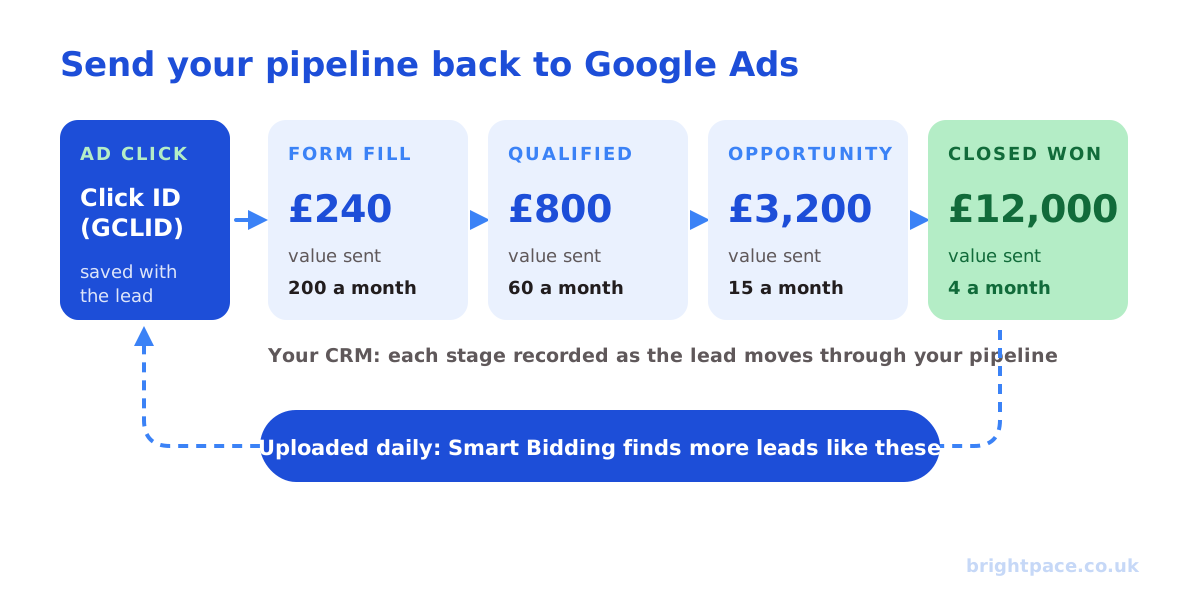
How offline conversion tracking works
- Someone clicks your ad. With auto-tagging on, Google adds a click ID, the GCLID, to your landing page address.
- They fill in your form. Your form captures the GCLID in a hidden field, along with the details they enter, and both are saved to your CRM.
- The lead moves through your pipeline. Your team qualifies it, books a meeting, sends a proposal, and the CRM records each stage.
- You send the outcome back to Google. For each stage you care about, you upload the GCLID, the conversion name, the date and time, and ideally a value.
- Google matches it to the click. The conversion is credited to the campaign, keyword and ad that drove it, and Smart Bidding learns from it.
There are two important limits: the conversion must happen within 90 days of the click, and Google can only match it if the click ID (or the customer’s details, below) made it into your CRM in the first place.
Two ways to match leads: click IDs and enhanced conversions
- Click ID (GCLID) imports: the classic method. Reliable when the click ID is captured, but it can be lost when people switch devices, when browsers strip tracking parameters, or when a form doesn’t store it. On iPhones, Google may use alternative IDs called GBRAID and WBRAID instead.
- Enhanced conversions for leads: your form also sends a hashed (scrambled) copy of the email address or phone number entered, and your upload includes the same hashed details. Google matches them to signed-in users, so conversions can be credited even without a click ID. Google now recommends this as the main way to measure offline leads, and changed how it works in 2026: see our guide to enhanced conversions for leads.
Most accounts should use both: capture the click ID where you can, and switch on enhanced conversions so leads still match when it’s missing.
Ways to send conversions back to Google
| Method | Best for | Effort |
|---|---|---|
| Native CRM integrations (HubSpot, Salesforce and others through Google Ads Data Manager) | Most B2B companies on a mainstream CRM | Low: mostly mapping your pipeline stages to conversion actions |
| Scheduled file uploads (Google Sheets, HTTPS or SFTP) | CRMs without an integration, or spreadsheets | Low to medium: someone or something updates the file daily |
| Connector tools (for example Zapier) | Pushing stage changes automatically without code | Medium |
| Google Ads API | Custom CRMs and high volumes | High: needs a developer |
| Manual CSV upload | Testing, or very low volume | Low, but easy to forget |
Whichever you choose, upload at least daily. The sooner Google learns about a conversion, the sooner bidding can act on it.
Setting it up: the overview
- Check auto-tagging is on in Google Ads (Admin → Account settings), so every click carries a GCLID.
- Capture the click ID on every form. Add hidden fields for the GCLID (and ideally GBRAID and WBRAID), store them when someone lands, and pass them into your CRM with the lead.
- Switch on enhanced conversions for leads in your conversion settings, so hashed email addresses are collected with form fills.
- Choose your stages. Pick the CRM stages that matter: for example qualified lead, opportunity and closed won.
- Create a conversion action for each stage in Google Ads, set to count one conversion per lead, with a value for each.
- Connect your CRM or schedule uploads, and run a test upload.
- Decide which conversion Google optimises for, and mark it as primary. Keep the others as secondary so you can still report on them.
- Check the diagnostics after a few days: Google Ads shows how many uploads matched and why any failed.
If you’re in the UK or EU, include each person’s consent status with your uploads where it’s required, and explain in your privacy policy that you share conversion data with advertising platforms. Our guide to first-party data covers this in more detail.
How to set it up in practice
Here’s the hands-on version. Google moves its menus around from time to time, so the click paths below are correct at the time of writing: if a label has changed, the option will be close by.
1. Capture the click ID on your form
Add hidden fields to every lead form, then a short script that saves the click ID when someone lands from an ad and fills it in when they submit, even if they come back days later without it in the address.
<!-- Inside your form -->
<input type="hidden" name="gclid">
<input type="hidden" name="gbraid">
<input type="hidden" name="wbraid">

<!-- Just before </body> -->
<script>
  (function () {
    var keys = ['gclid', 'gbraid', 'wbraid'];
    var ninetyDays = 90 * 24 * 60 * 60 * 1000;
    var params = new URLSearchParams(location.search);
    keys.forEach(function (k) {
      // Save any click ID in the address, with the time it arrived
      if (params.get(k)) localStorage.setItem(k, JSON.stringify({ v: params.get(k), t: Date.now() }));
      // Fill matching hidden fields if the saved ID is under 90 days old
      var saved = JSON.parse(localStorage.getItem(k) || 'null');
      if (!saved || Date.now() - saved.t > ninetyDays) return;
      document.querySelectorAll('input[name="' + k + '"]').forEach(function (input) { input.value = saved.v; });
    });
  })();
</script>
If many of your leads phone rather than fill in a form, the same approach works for calls: see Google Ads call tracking. Then create a field in your CRM called GCLID (and GBRAID and WBRAID if you can) and map the hidden fields to it, so every lead from Google arrives with its click ID. If your consent banner holds back advertising storage until people accept, run this script only after they do. If you use HubSpot’s own forms with its Google Ads integration connected, HubSpot can record the click for you.
2. Turn on enhanced conversions for leads
In Google Ads, go to Goals → Settings → Customer data use, switch enhanced conversions on and accept the customer data terms, then set the Google tag (or Google Tag Manager) to collect the email field. Since 2026 this is one setting for web and leads: our enhanced conversions for leads guide has the details. Your form then sends a hashed email address with each submission, which Google uses to match leads that arrive without a click ID.
3. Create a conversion action for each stage
Go to Goals → Conversions → Summary → + Create conversion action → Import, choose CRMs, files or other data sources, then either your CRM or Track conversions from clicks. For each stage:
- Name: something you’ll recognise in uploads, such as Qualified lead (CRM). Uploads must use this name exactly.
- Goal: Qualified lead or Converted lead.
- Value: your stage value, such as £800.
- Count: One, so one lead can only count once.
- Click-through window: 90 days, so slow-moving deals still count.
Repeat for opportunity and closed won.
4. Prepare the upload file
On the upload screen, download Google’s template: it shows the exact columns, including optional email and phone columns for enhanced conversions. A minimal file looks like this:
| Google Click ID | Conversion Name | Conversion Time | Conversion Value | Conversion Currency |
|---|---|---|---|---|
| the click ID from your CRM | Qualified lead (CRM) | 2026-10-07 14:30:00 Europe/London | 800 | GBP |
| the click ID from your CRM | Opportunity (CRM) | 2026-10-09 10:05:00 Europe/London | 3200 | GBP |
Three details cause most failed uploads:
- The name must match the conversion action exactly.
- The time needs a time zone: either on each row, as above, or set once at the top of Google’s template.
- The conversion must come after the click, and within 90 days of it.
5. Upload once, or on a schedule
Go to Goals → Conversions → Uploads, click +, and choose your source: a file, Google Sheets, HTTPS or SFTP. Preview, then apply. For ongoing use, point a scheduled upload at a Google Sheet that your CRM or a connector tool updates, and set it to run daily. Check the Uploads history after each run for errors.
6. Or connect your CRM directly
- HubSpot: connect your Google Ads account in HubSpot’s ads settings, then create conversion events from the lifecycle or deal stages you care about (such as SQL and opportunity) and sync them to Google Ads. HubSpot then sends them automatically.
- Salesforce: link it in Google Ads through Tools → Data manager, then map your opportunity stages to conversion actions.
- Other CRMs: check Data manager for a connector, or use a tool such as Zapier to send stage changes to Google Ads or update your scheduled sheet.
7. Test before you trust it
- Check the field is filled. Visit your landing page with
?gclid=test123added to the address, submit a test lead, and confirm the CRM record showstest123. (A made-up ID like this won’t match in Google Ads: it only proves the capture works.) - Follow a real lead through. When a genuine lead arrives from an ad, confirm it has a click ID, move it to the next stage, and check it appears in your next upload.
- Read the diagnostics. In the Uploads history, Google shows how many rows matched and why others didn’t: for example click too old or conversion before click. Conversions can take a day or more to appear in reports.
- Compare totals monthly. The number of qualified leads from Google in your CRM should be close to the number Google Ads reports. A big gap usually means click IDs are being lost.
Which stage should Google optimise for?
The deeper the stage, the better the signal, but the fewer conversions Google has to learn from. Smart Bidding works best with a steady flow: Google’s lead generation guidance recommends at least 15 conversions in the last 30 days, at account level, for the conversion action you bid to, and more is better.
- Plenty of deals each month? Optimise to closed-won revenue.
- Few deals but steady qualified leads? Optimise to qualified leads or opportunities.
- Low volume across the board? Use values for every stage and bid for conversion value, so Google gets volume from early stages and quality from later ones.
Running Performance Max for leads? The same rules apply: see Performance Max for lead generation.
Worked example: giving each stage a value
Say a B2B software company gets 200 form fills a month from Google Ads. Of those, 60 become qualified leads, 15 become opportunities and 4 become customers, each worth £12,000 in their first year.
Each stage is worth the deal value multiplied by its chance of closing:
| Stage | Number a month | Chance of becoming a customer | Value to send Google |
|---|---|---|---|
| Form fill | 200 | 4 in 200 (2%) | £240 |
| Qualified lead | 60 | 4 in 60 (6.7%) | £800 |
| Opportunity | 15 | 4 in 15 (26.7%) | £3,200 |
| Closed won | 4 | : | £12,000 (the actual deal value) |
With these values in place, a form fill from a student is worth £240 at most and never progresses, while a lead that reaches opportunity sends £3,200 of signal back. Bidding for conversion value, Maximise conversion value or Target ROAS, then pushes budget towards the searches that produce opportunities. Update the values every quarter as your conversion rates change. Our LTV:CAC calculator helps you work out what a customer is really worth.
Common mistakes
- Counting the form fill and the qualified lead as primary. Google then optimises for both, and the cheap form fills win. Make one primary.
- Losing the click ID. Forms that don’t store the GCLID, CRMs that overwrite it, or redirects that drop it. Test with a real click before relying on it.
- Uploading too late. Conversions more than 90 days after the click can’t be imported, and weekly uploads slow down learning.
- Optimising to a stage with too little data. Five closed deals a month isn’t enough for Smart Bidding on its own: use stage values instead.
- Forgetting about lost deals. If a lead turns out to be spam or a duplicate, use conversion adjustments to retract or restate it.
- Only fixing Google. Microsoft Advertising supports offline conversions with its own click ID (MSCLKID), and LinkedIn and Meta accept CRM conversions too: see our guides to LinkedIn ads costs and the Meta Conversions API.
How we use it for B2B clients
For B2B and SaaS companies, connecting CRM outcomes to Google Ads is one of the first things we look at, usually through your CRM’s built-in integration, set up with your CRM admin. Campaigns are then judged on qualified pipeline and revenue rather than form fills, and our weekly report shows those numbers alongside what each platform claims. It’s the same thinking behind commercial alignment over channel metrics. Starting from scratch? Our Google Ads account audit checklist and guide to setting up GA4 key events cover the basics first.
FAQs
What is offline conversion tracking in Google Ads?
It’s a way of sending results that happen away from your website, such as qualified leads, sales meetings and closed deals recorded in your CRM, back to Google Ads, matched to the ad click that started them. Google then credits the right campaigns and uses the data to bid for more leads like your best ones.
How long after the click can I upload an offline conversion?
Up to 90 days after the click. Upload at least daily so Smart Bidding can learn from conversions quickly, and make sure your conversion action’s window is long enough for your sales cycle.
Do I need a developer to set up offline conversions?
Often not. HubSpot, Salesforce and several other CRMs connect to Google Ads through built-in integrations, and scheduled uploads from Google Sheets need no code. Custom CRMs or very high volumes may need the Google Ads API, which does.
What is the difference between offline conversions and enhanced conversions for leads?
Classic offline imports match conversions using the click ID captured on your form. Enhanced conversions for leads match using hashed customer details, such as email address, so conversions can still be credited when the click ID was lost. Using both gives the most complete picture.
What format does the Google Ads offline conversion upload file need?
At minimum: Google Click ID, Conversion Name, Conversion Time, Conversion Value and Conversion Currency. The conversion name must match your conversion action exactly, and the time needs a time zone: for example 2026-10-07 14:30:00 Europe/London. Download Google’s template from the upload screen for the full list of columns.
Will offline conversions lower my cost per lead?
Possibly not, and that’s fine. Optimising to qualified leads or revenue often raises the cost of each form fill while lowering what you pay for each opportunity and customer, which is what matters.
Does it work for Microsoft Advertising and LinkedIn?
Yes. Microsoft Advertising imports offline conversions using its own click ID (MSCLKID), and LinkedIn and Meta both accept conversions from your CRM through their conversions APIs.
In short
Offline conversion tracking sends what happens in your CRM, qualified leads, opportunities and deals, back to Google Ads, matched to the original click. Capture the click ID, switch on enhanced conversions, give each pipeline stage a value and make one stage primary, and Google will bid for the leads that become revenue instead of the cheapest form fills. Want an agency to set it up? Our list of the best B2B PPC agencies in the UK explains what to ask.
Sources
The platform documentation and coverage this guide is checked against. Last checked October 2026.
- Offline conversion imports FAQs, Google Ads Help
- Configure the Google tag for enhanced conversions for leads, Google Ads Help
- About enhanced conversions, Google Ads Help
- Best practices for generating high-quality leads, Google Ads Help
- About consent mode, Google Ads Help
Want Google Ads judged on pipeline, not form fills? See how we work with B2B companies, read about our approach to measurement, or let’s chat.
Want a senior eye on your paid search?
Work directly with the founder: no juniors, no hand-offs, 30-day rolling contracts.